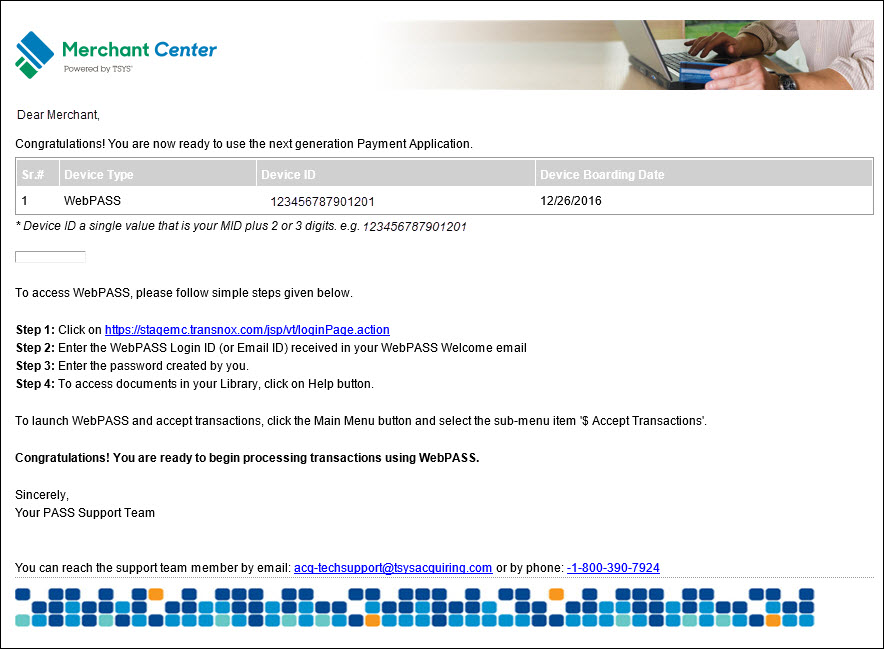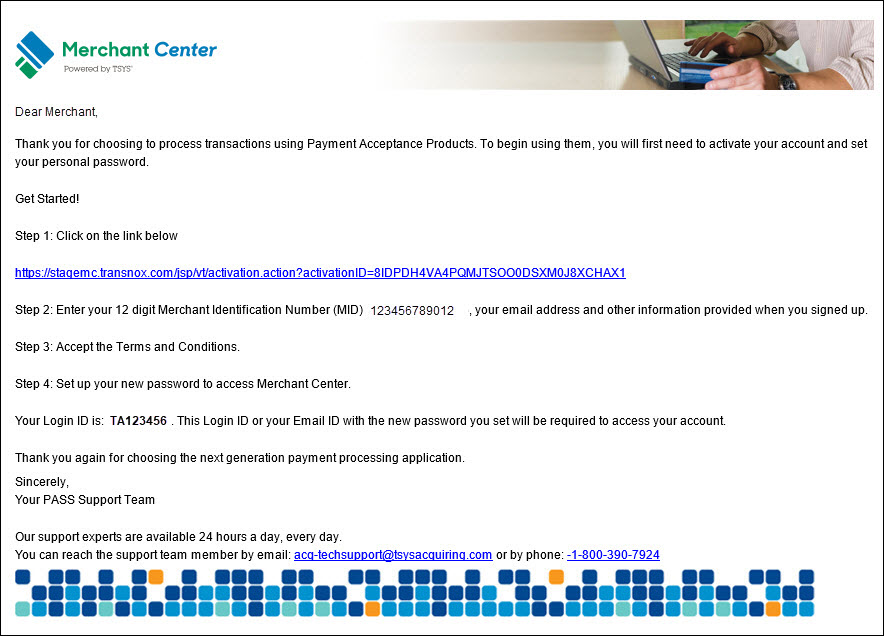
The merchant receives the welcome email after successful boarding. The merchant can use the activation link in the welcome email to activate the account.
To activate an account using the link in the activation email,
Click the activation link.
The Activation screen opens.
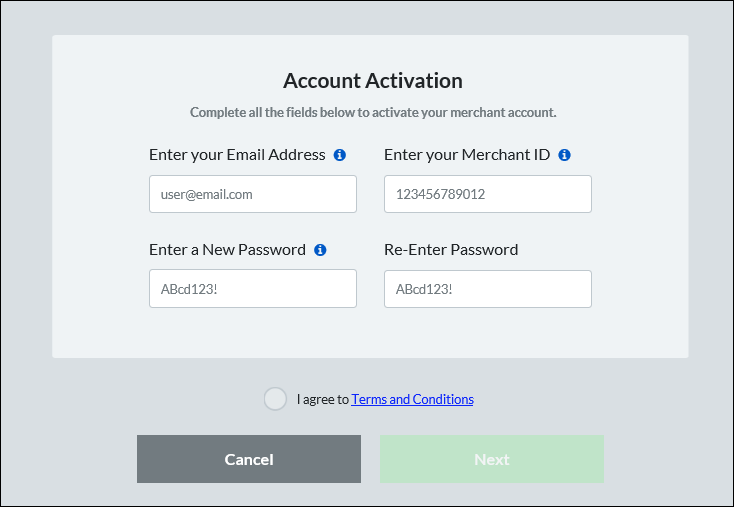
From the Activation screen, enter the account verification information (all fields are mandatory), and then click Next.
Type the email address in the Enter your Email Address field.
Type your merchant ID in the Enter your Merchant ID field.
Type a password in the Enter a New Password field.
Note: The password must contain eight to sixteen characters, and consist of at least one number from 0 to 9, at least one uppercase and one lowercase letter from A to Z, and at least one special character (! @ $ ^ * - _ .). Your password can not contain spaces or match any of the previous six passwords.
Re-type the password in the Re-Enter Password field.
Read the terms and conditions, then select I agree to the Terms and Conditions.
The Merchant Center MFA screen is displayed.
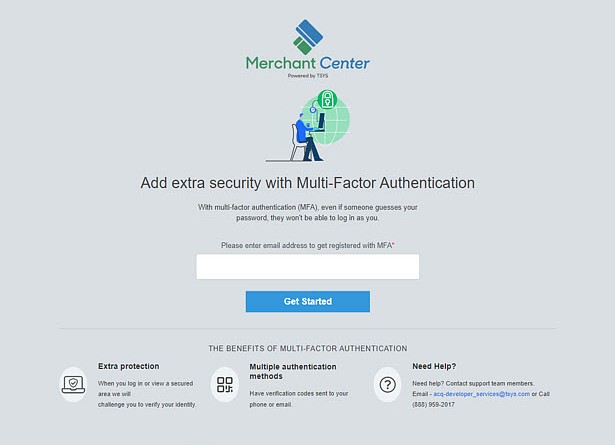
Key in the email address, then select Get Started.
The Confirm Email ID dialog box is displayed.
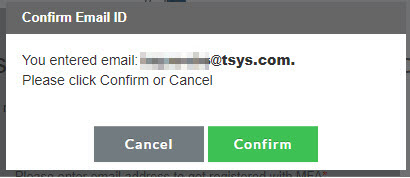
Verify the email address, and then select Confirm.
The Authentication Method screen is displayed.
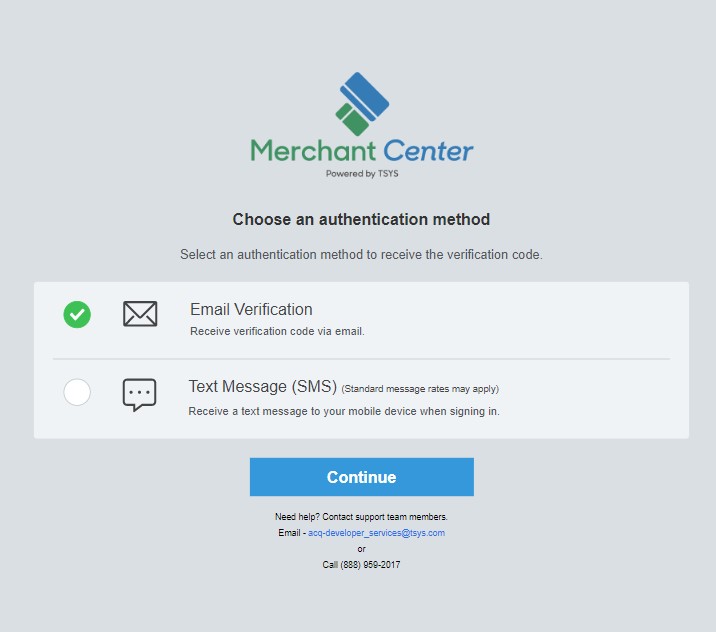
Select an authentication option and then select Continue.
Verify the activation data and then select Send Verification Code.
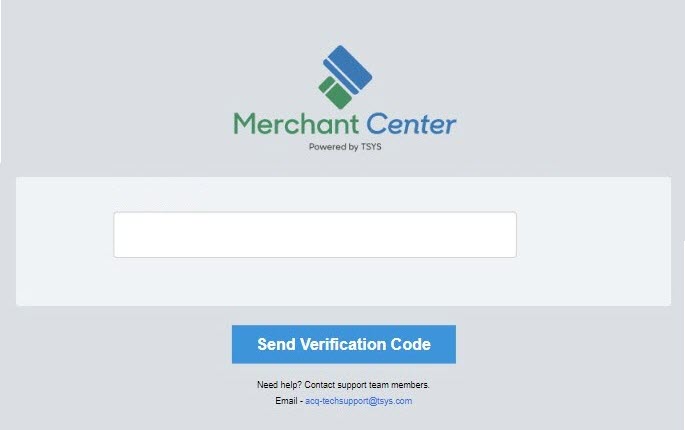
An email or text message with a verification code is sent using the verification method selected. It can take a few minutes to receive the code.
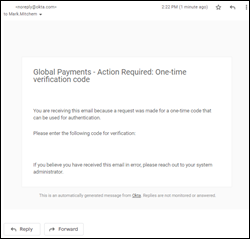
Key in the verification code, and then select Verify.
Note: Select the Don’t ask me again for 45 days checkbox to activate a 45-day bypass.
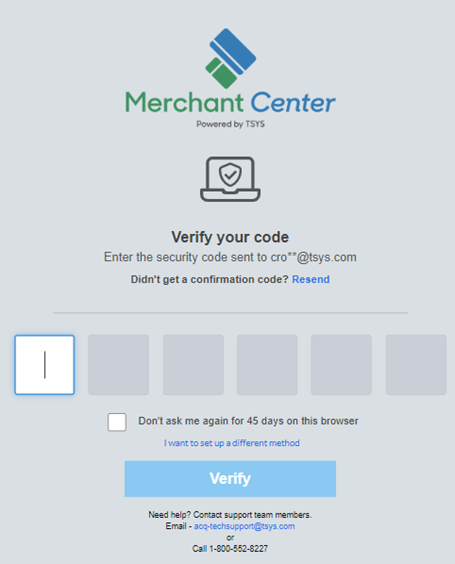
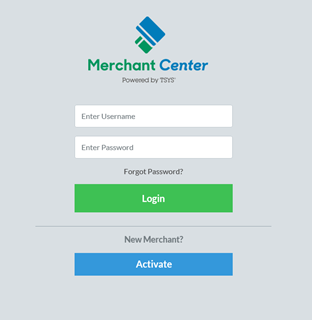
The merchant account activation is complete and the Login screen opens.
After a successful merchant account activation, an account activation email is sent to the registered email address. This email contains a list of registered products, details such as device type, device ID, device boarding date, and additional information to access the application.