Path:Settings —> Payment Apps
On This Page
The Integrating 3rd-party Applications explains how to create and configure third-party applications on the payment platform. It covers creating a new app by providing its name, visibility scope, integration mode, and logo; assigning necessary API permissions; and enabling the app for specific merchants through the "Pay-apps" section in the merchant list.
Upload App
Upload a new app to TMS platform.
Step 1 - Click the ‘Create app’ button;
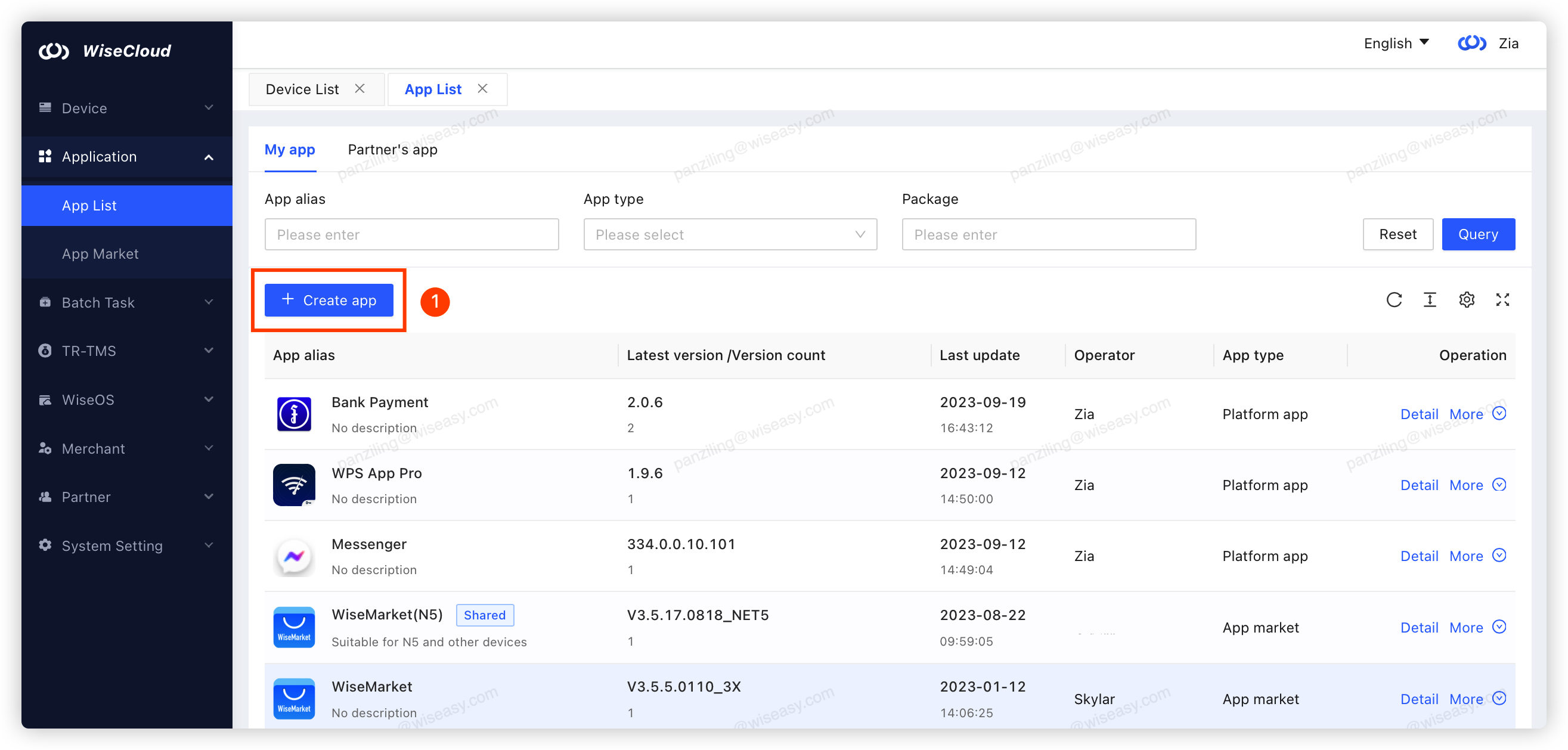
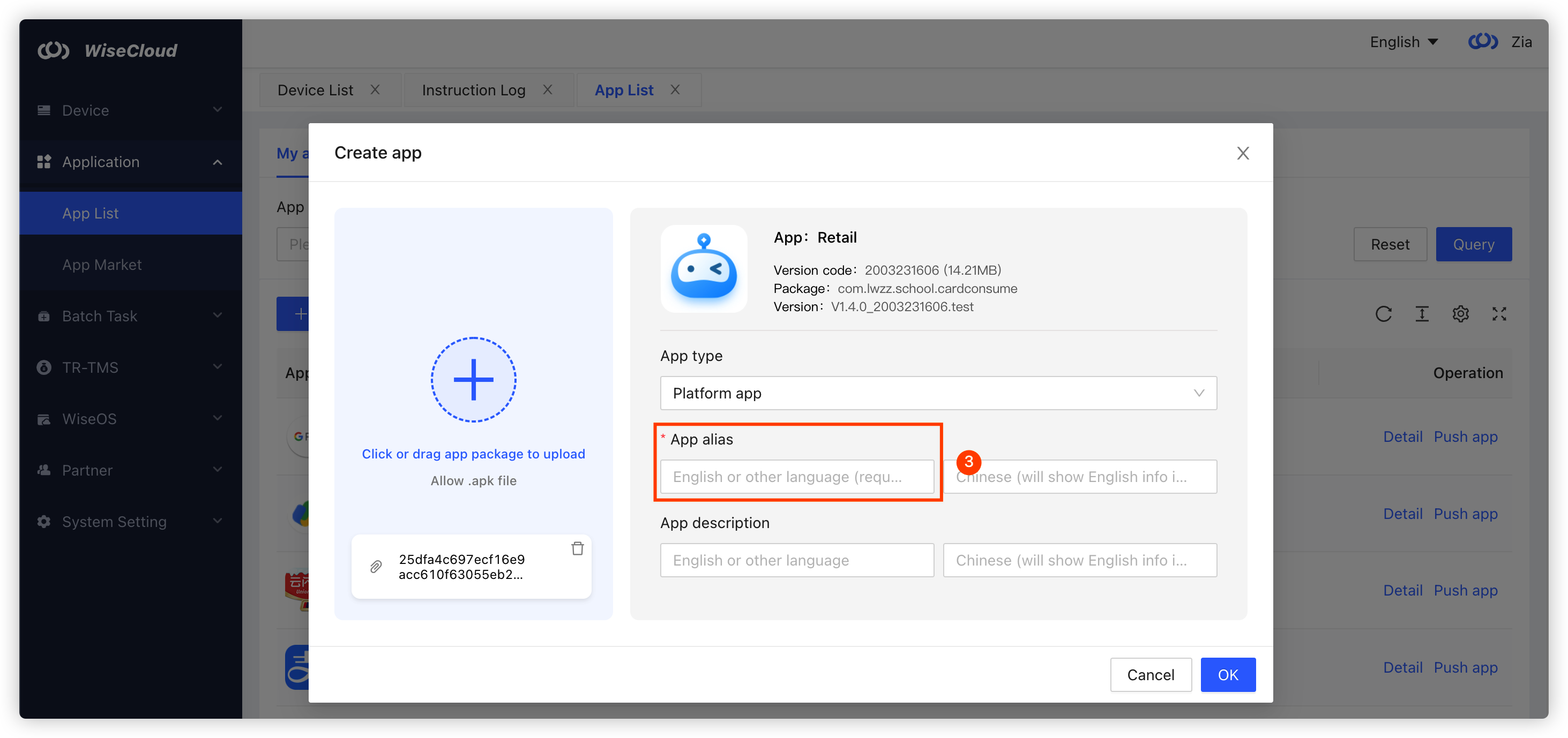
Step 2 - Click or drag app package to upload the app, the basic app info will automatically filled once the package uploaded;

Step 3 - Set a App alias, enter App description, and select a App type.
Creating Your Application In Copilot
- Click the
New APP button to start creating your app profile

- Fill the basic information of the application
- Name: Input the name of your application
- Visible range:
- All Merchants: This means that all merchants can open and use the app
- Assigned Merchants: This means that only some merchants are allowed to open and use the app, and provide the management features of available merchants
- Integration mode:
- Server: Integrating by Cloud mode
- Terminal: Integrating by terminal Invoke
- Logo: Upload the Logo of your application

Assigning available APIs
- Visit the payment app management page, click on the app name, go to the details page and start setting API permissions

- Check the API options available to the application

Enabling payment applications for merchants
- Visit the Merchant Listing page and click on the "Pay-apps" button.

- Go to the merchant's application management page and enable your application for the merchant

← Previous
Batch Close Report
Next →
Transaction Diagnose